
Your local save data is stored in the following location on your PC:C:\Users\<Windows UserName>\AppData\Local\R5\Saved\SaveProfiles\<Your Steam ID>\RocksDB\<Game Version>\Worlds\<World ID>
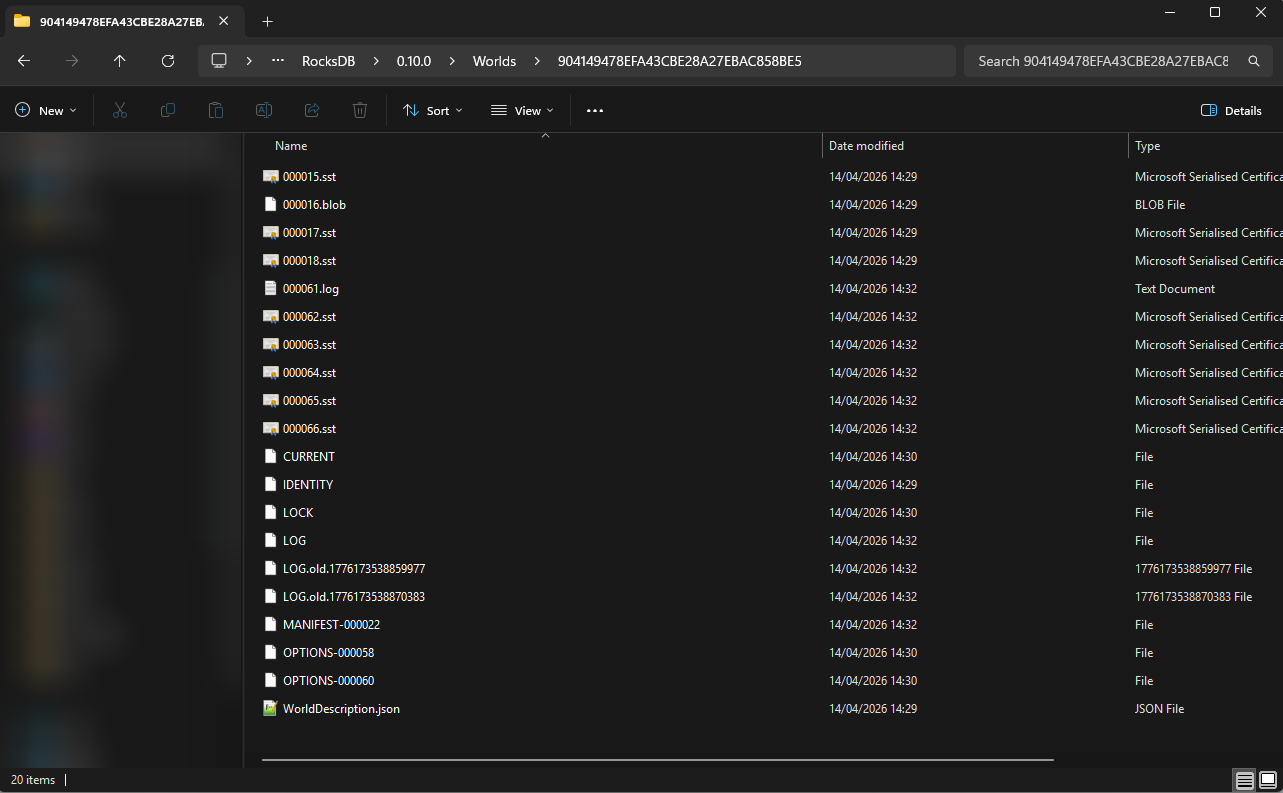
- Navigate to the above path to find your specific save data, once you have located it it will look similar to this:
- This now needs to be uploaded to your server, for reliability we would recommend that you use an FTP program to do this. Please refer to our guide here for this process: https://pingperfect.com/knowledgebase/19/Accessing-your-files--File-manager--FTP--SFTP.html
- The location you need to upload it to on the server is very similar to the location on your PC.
You must upload your save game folder, in our example it is named:904149478EFA43CBE28A27EBAC858BE5
This goes into this folder on your server:R5\Saved\SaveProfiles\Default\RocksDB\0.10.0\Worlds\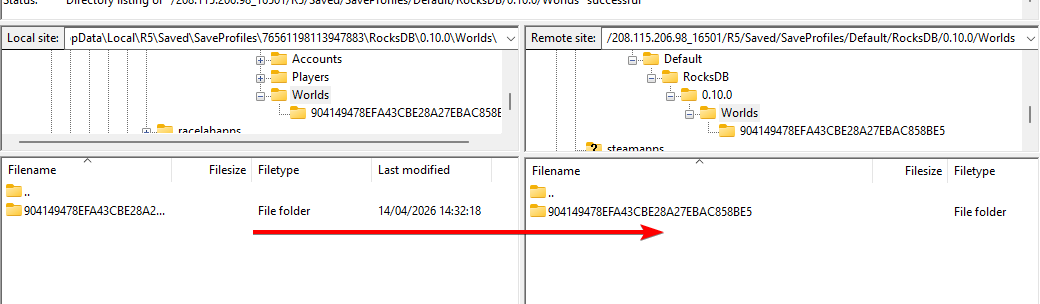
- Once your data is uploaded to the server you will just need to tell the server to load that, you can do this by modifying the ServerDescription.json in your control panel Configuration Files area.
Using the Config Editor you can modify the World Island ID setting to select the ID of the save data you have just uploaded like so (if you have multiple save games you will see them all listed):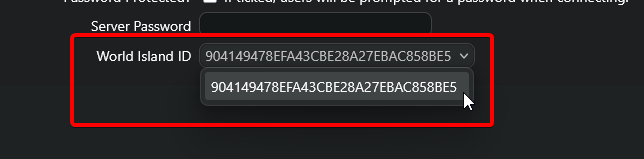
- Save your changes, exit the file, and now you can start your server.
Looking for a game server host known for brilliant 24/7 customer support and quality hardware?
Try a PingPerfect Windrose server today!
https://pingperfect.com/gameservers/windrose-server-hosting