
To upload your own save data to the server please follow these steps.
Your save data is stored in the following location on your PC:C:\Program Files (x86)\Steam\steamapps\common\RSDragonwilds\RSDragonwilds\Saved\SaveGames
If you have modified the install directory at all, please right click the game in your Steam Library, go to Manage, and then Browse Local files to view the correct location.
- In the SaveGames folder you will see a list of all your created worlds.
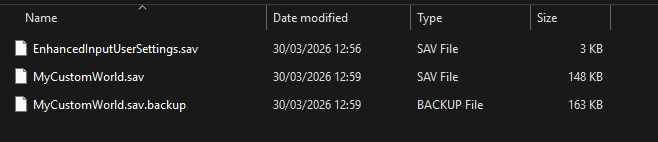
In this instance, the save game I would like to upload is called "MyCustomWorld". The specific file that's required must end in.sav. - After locating your save game you now need to upload this onto the server, we would recommend doing this with an FTP program, please refer to the information here for how to connect: Accessing your files | File manager | FTP | SFTP
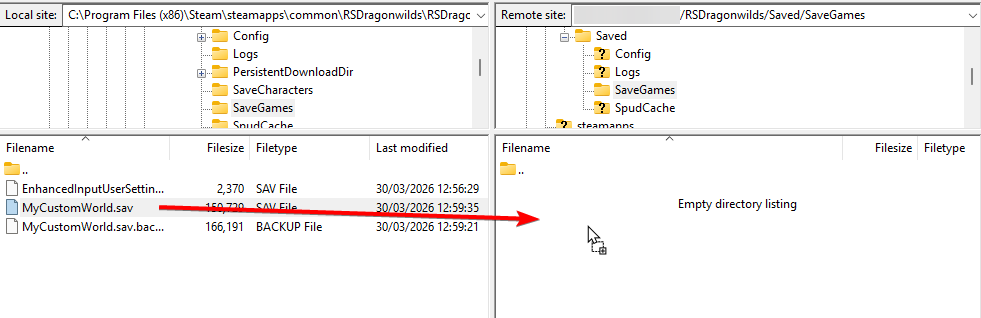
You must upload it to the following directory on your server -RSDragonwilds/Saved/SaveGames - Before uploading the file, make sure to delete every other file inside of the
RSDragonwilds/Saved/SaveGamesfolder, it must be empty before uploading your own data - if required, please ensure to backup any data inside this folder that you wish to keep. - Simply drag and drop with your FTP tool to upload the .sav file to your SaveGames folder on the server:
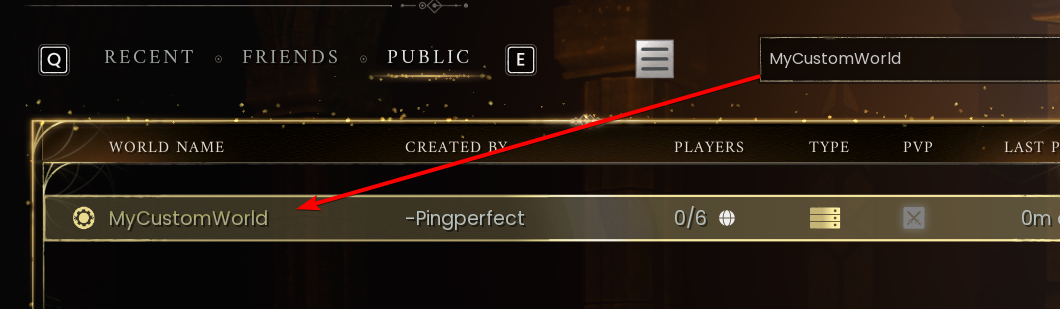
- You can now start your server, and if you search in game for your world name it will appear:
If you have any questions please don't hesitate to reach out to our support team here, we are available 24/7 and happy to assist - https://pingperfect.com/contact
Looking for a game server host known for brilliant 24/7 customer support and quality hardware?
Try a PingPerfect RuneScape Dragonwilds server today! https://pingperfect.com/gameservers/runescape-dragonwilds-server-hosting